
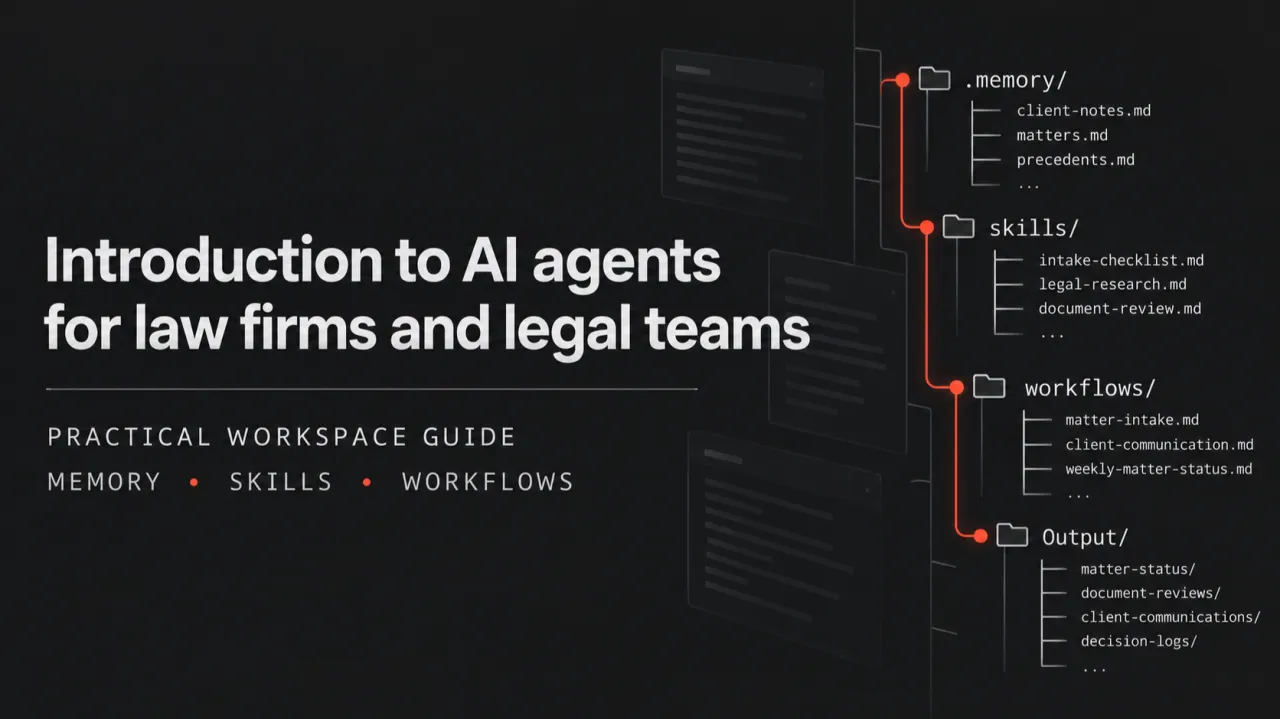
This article explains, step by step, how to build an AI assistant in your law firm using an editor (desktop AI app) and an LLM subscription.
Introduction
The goal here is to create an assistant that “understands” your work and firm so it provides effective support by automating some repeatable or time-consuming tasks. A useful assistant is a small operating system made from clear instructions, reliable memory, reusable skills, guardrails, and structured outputs.
We use ChatGPT or Claude Code desktop apps where we build instructions, memory, and prompts integrated into a system called a harness. This is why the workspace structure matters more than the specific brand of assistant (Claude, GPT, etc.) or the model.
Important distinction: the desktop app and the browser assistant are not the same thing. A desktop agent is the tool that can read and edit files in your local computer workspace. The model is the reasoning engine behind it.
Browser tools vs desktop tools
AI tools broadly fall into two operating models:
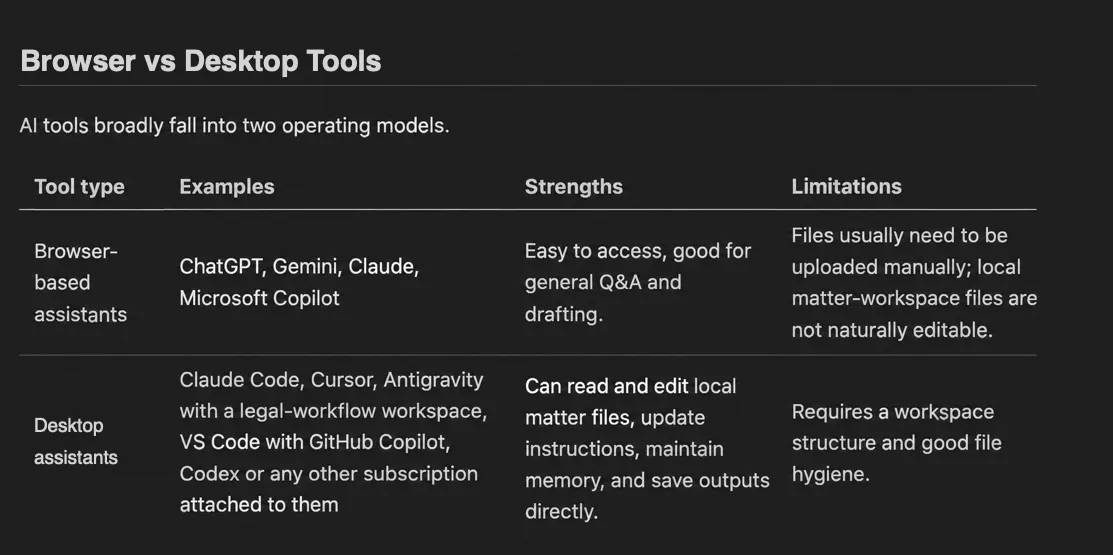
Figure 1 – Browser vs. desktop tools
Here are the benefits of using IDE/desktop-based agents:
- Reduced hallucination risk by grounding the assistant in local source files.
- Generated outputs stay traceable and reusable.
- Long-term context and memory are preserved across chats.
- Repeated manual prompts become repeatable skills or workflows.
Key concepts
Below are the most important concepts and elements of the agentic workspace.
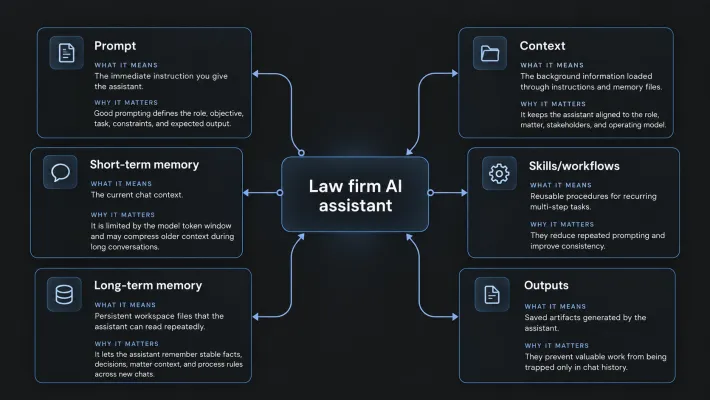
Figure 2 – Key concepts
Memory: short-term vs long-term
Short-term memory
Short-term memory is the current chat’s token limit.
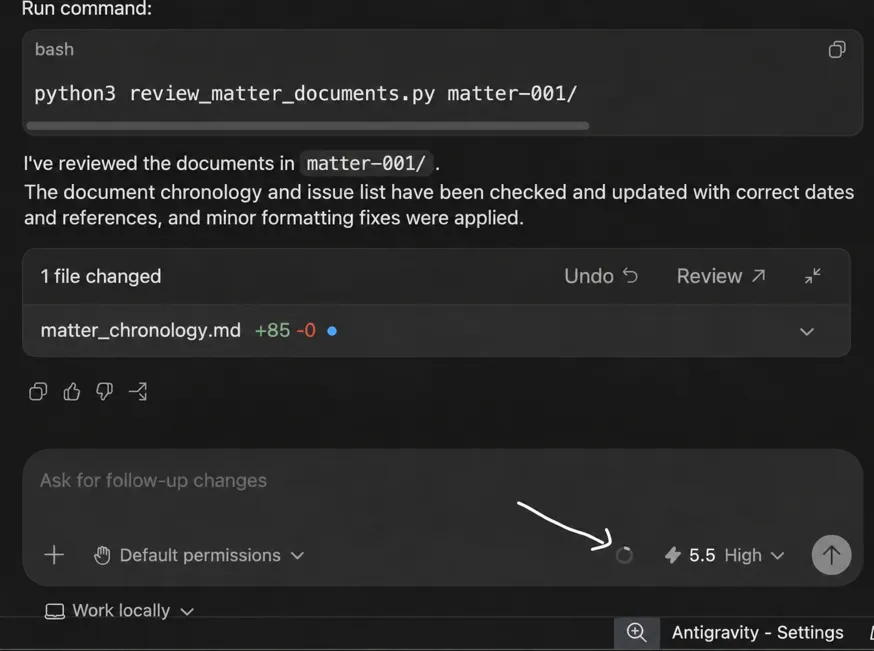
Figure 3 – Short-term memory
Once the limit is reached, the chat may compress older information. This can make the assistant lose detail, mix up facts, or hallucinate.
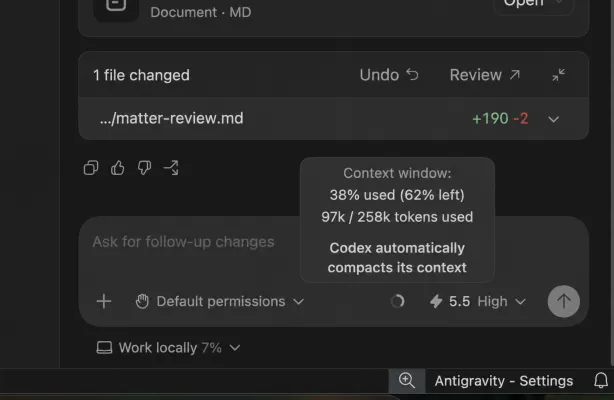
Figure 4 – Chat context limits
Long-term memory
Long-term memory is stored as files in the workspace. These files can be read when a new chat starts, so the assistant doesn’t need to be briefed from scratch every time.
Useful memory files can include:
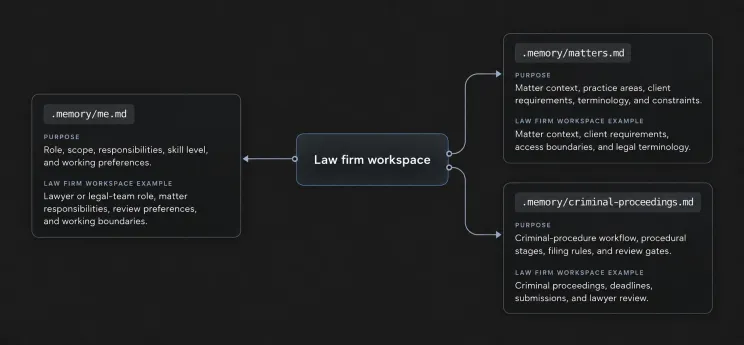
Figure 5 – Example of a law firm’s memory
Context and master instructions
Every assistant workspace should have a master instruction file in the root folder. For a cross-platform setup, create one source file and let the other agent instruction files point to it.

Figure 6 – Master prompts
This means you maintain the instructions in CLAUDE.md, while GEMINI.md and AGENTS.md are symbolic links to the same file. Claude, Gemini, and OpenAI-style agents can then read the same master prompt without you maintaining three separate copies.
The master instruction file is the assistant’s single source of truth for always-on behaviour. It should define:
- The role the assistant should play.
- The primary responsibilities.
- The expected tone and output style.
- How to handle risks, decisions, assumptions, and missing information.
- Which memory files to check before giving substantive recommendations.
- How to route work to specific skills, prompts, or agents.
The ideal setup is for the master instruction file to explicitly route the assistant into the memory files. For example:
Before producing matter or client-workflow advice, check
.memory/firm.md,.memory/matters.md, and.memory/methodology.md.
Recommended workspace structure
This example uses a law-firm workspace: a local folder with a file and folder structure.
Please note that this is a tool-agnostic architecture we designed ourselves. Each AI company has its own rules for setting up sub-agents, skills etc., so be sure to study them too.
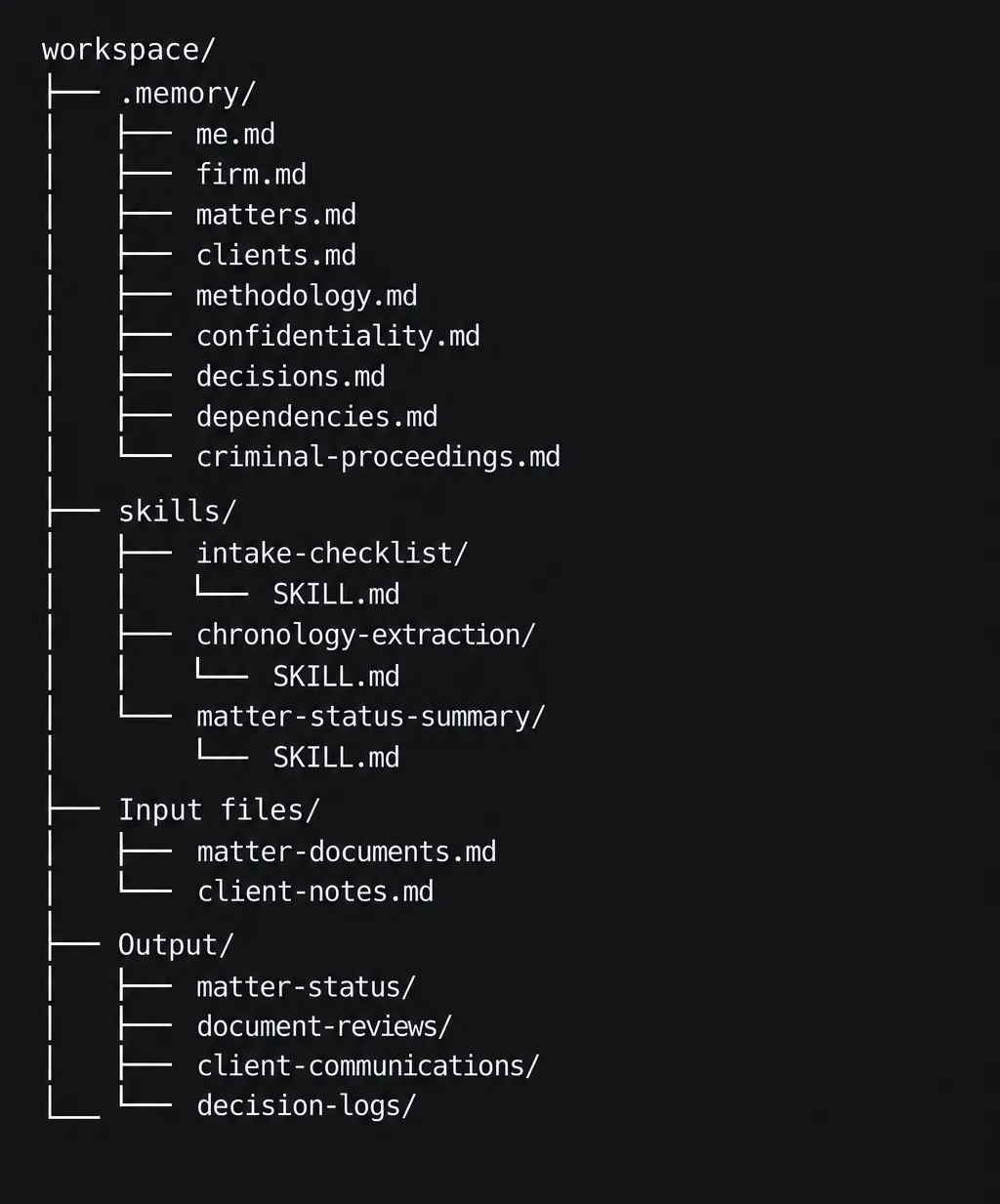
Figure 7 – Workspace structure
What goes where
1. CLAUDE.md, GEMINI.md, and AGENTS.md
Use these for master behaviour. Maintain the real content in CLAUDE.md, then create GEMINI.md and AGENTS.md as symbolic links to CLAUDE.md so all three agent families read the same instructions.
Include:
- Role and mission.
- Core responsibilities.
- Tone and output style.
- Risk and decision-handling rules.
- Required context loading behaviour.
- Routing to specific agents, skills, prompts, and memory files.
Law-firm example:
You are an assistant supporting a legal team working on matter intake, document review, research preparation, knowledge management, drafting support, and client communication.
You must read
.memory/firm.md,.memory/matters.md,.memory/methodology.md,.memory/confidentiality.md, and.memory/decisions.mdbefore taking any action, and you must log important decisions in.memory/decisions.md.A qualified lawyer retains responsibility for legal judgment, client advice, and final work product.
2. .memory/
Use this for persistent context (long-term memory).
Store stable facts that the assistant should repeatedly use, such as:
- Your role and responsibilities.
- Firm scope and terminology.
- Stakeholder ownership and escalation paths.
- Matter discovery, workflow, and service methodology.
- Decision history.
- Known constraints and dependencies.
This reduces repeated prompting and helps avoid hallucinations because the assistant has a stable local source of truth.
3. Agent-level skills
Use skills for orchestrated recurring tasks that belong to a specific agent. Treat skills as procedures.
Example skills:
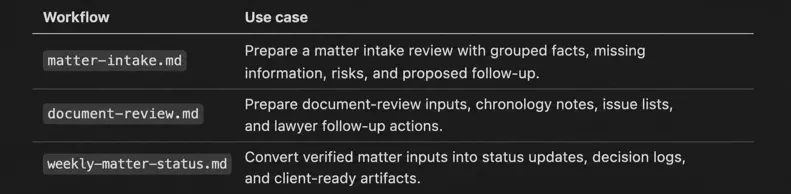
Figure 8 – Law-firm workflows
Use the root prompts/ folder for reusable one-shot commands
Prompts are useful when the task is recurring but does not need a full workflow. Examples:
- Draft a weekly legal matter status using
.memory/matters.md,.memory/client-communications.md, and.memory/decisions.md. - Create a case-team agenda using unresolved items from
.memory/dependencies.md. - Convert a legal document bundle plus review notes into a publish-ready internal matter summary in
Output/. - Summarize a client or document review into decisions/actions and append key decisions to
.memory/decisions.md.
4. Built-in Claude Code skills/
Additionally, you can convert the skills defined in step 3 into built-in Claude Code skills. This feature allows the AI agent to decide on its own when to use your skill.
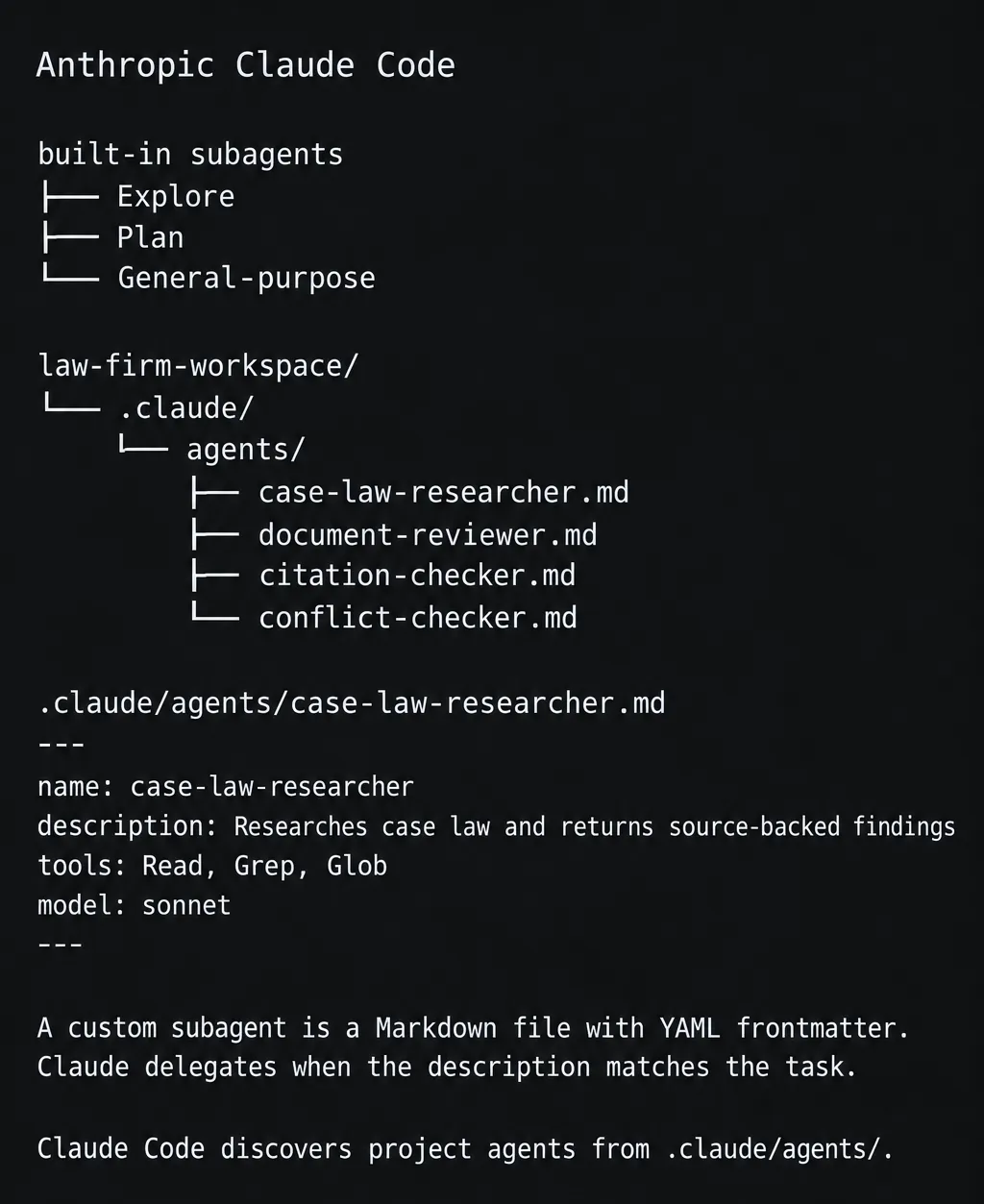
Figure 9 – Skills in Claude
Each skill should live under the relevant agent’s skills/ folder and include a SKILL.md file. The file name matters; do not rename it to something custom if the tool expects SKILL.md.
Useful tip: you can download ready-made skills from these sources, upload them, and adjust them to your workspace:
- https://mcpmarket.com/tools/skills (my favourite marketplace)
- https://github.com/samueltauil/skills-hub
5. Output/
Do not let valuable work exist only in chat history. Save generated summaries, reports, analyses, and meeting notes into structured output folders.
Example output folders:
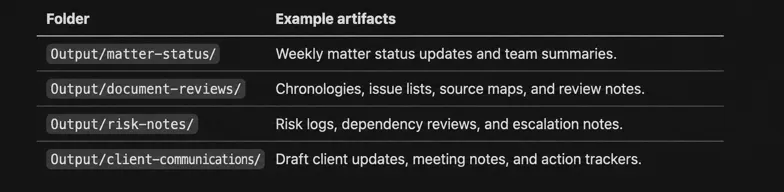
Figure 10 – Output folders
6. Sub-agents
You can open specific tasks with a role-specific sub-agent. The benefit is that every task is opened with its own context (see: short-term memory).
The simplest way to create the tool-agnostic architecture is with an agents/ folder, instructing the agent to open processes in this folder as sub-agents.
7. Guardrails
Guardrails make the assistant safer and more reliable.
Recommended guardrails:
- Treat external skills as draft templates until validated.
- Require sources for factual claims.
- Separate facts, assumptions, and open questions.
- Do not invent owners, dates, source IDs, client facts, legal conclusions, or decisions.
- Log important decisions with date, rationale, owner, and follow-up.
- Log notable assistant mistakes and update instructions when patterns repeat.
8. MCP servers
An MCP server (Model Context Protocol server) is a service that connects the assistant to external systems through a structured tool interface, such as project tracking, documentation, legal research, etc.
MCP allows you to connect almost any external tool.
Recommended adoption sequence
Start small and build confidence — don’t go to skills and sub-agents at first.
- Build the foundation. Start by creating a workspace folder on your computer and opening it in your preferred AI agent:
- Create a new folder on your computer (for example, Law Firm Assistant or Matter Assistant).
- Open Claude Code.
- Use File > Open Folder and select the folder you just created.
- The AI agent will now treat this folder as your workspace.
- Once the workspace is open, create the master prompt and the core
.memoryfiles. - Pilot one high-friction workflow. Pick a workflow where the value is obvious in this workspace, such as converting matter documents and review notes into an internal status page and decision log.
Later, you can start experimenting with skills and sub-agents.
Other knowledge worth exploring
If you spend a lot of time searching the internet (e.g. legal teams looking for case, regulatory, or market information), you may want to explore:
- https://github.com/microsoft/playwright-cli
- https://www.firecrawl.dev
- https://apify.com
- https://serpapi.com
Thank you for reading!